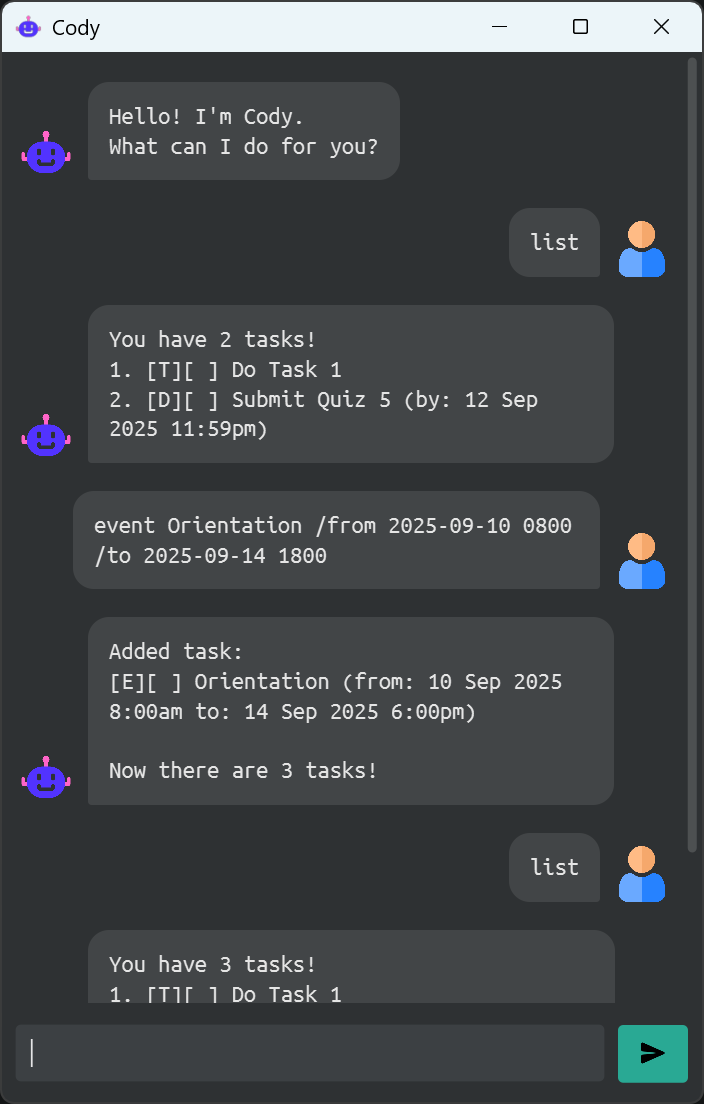
Cody is a personal assistant designed to help you organize tasks and keep track of your schedule.
Download View on GitHubManage your day with Cody!
Cody is a personal assistant designed to help you organize tasks and keep track of your schedule.
Download View on GitHubtododeadlineeventlistlist <date>findmarkunmarkdeleteedit or updateexit or byeEnsure you have Java 17 or above installed in your Computer.
Download the latest .jar file from here.
Copy the file to the folder you want to use as the home folder for managing your tasks.
Double-click the cody.jar file to run the app.
cd into the folder you put the jar file in, and use the java -jar cody.jar command to run the application.Type a command in the command box and press Enter to execute it.
Some example commands you can try:
todo Finish assignment : Adds a todo with description “Finish assignment” to the task list.
list : Lists all tasks.
mark 1 : Marks the first task in the list as done.
edit 1 /desc Submit quiz : Renames the description of the first task to “Submit quiz”.
delete 1 : Deletes the first task in the list.
exit : Exits the app.
Refer to the features below for details of each command.
Notes about the command format:
Words wrapped in angle brackets (e.g.
<...>) are values to be supplied by the user.e.g.,
todo <description>could betodo Finish assignment.Items in square brackets (e.g.
[...]) are optional, unless specified otherwise.e.g.
<index> [/from <YYYY-MM-DD HHmm>]can be used as3 /from 2023-10-01 1800or just3.All dates and times are to be written in the format
YYYY-MM-DD HHmm(e.g.,2023-10-01 1800for 6pm on 1st October 2023).All commands are lowercase, any uppercase letters will be treated as invalid command.
Extraneous parameters for commands that do not take in parameters (such as
exitandbye) will be ignored.e.g. if the command specifies
exit 123, it will be interpreted asexit.If you are using a PDF version of this document, be careful when copying and pasting commands that span multiple lines as space characters surrounding line-breaks may be omitted when copied over to the application.
todoAdds a task of type Todo to the task list. It only includes a description.
Format: todo <description>
Examples:
todo Finish assignmenttodo Buy groceriesdeadlineAdds a task of type Deadline to the task list. It includes a due date and time as well.
Format: deadline <description> /by <YYYY-MM-DD HHmm>
Examples:
deadline Submit report /by 2023-10-15 2359deadline Pay bills /by 2023-10-01 1200eventAdds a task of type Event to the task list. It includes starting and ending dates and times for the event.
Format: event <description> /from <YYYY-MM-DD HHmm> /to <YYYY-MM-DD HHmm>
Examples:
event Team meeting /from 2023-10-05 1400 /to 2023-10-05 1500event Birthday party /from 2023-10-20 1800 /to 2023-10-20 2100listShows a list of all added tasks.
Format: list
list <date>Shows a list of added tasks that occurs on the specified date.
Format: list <YYYY-MM-DD>
Examples:
deadline Submit report /by 2023-10-15 2359 followed by list 2023-10-15 will show the added deadline.todo Finish assignment followed by list 2023-12-25 will show no results.findShows a list of tasks whose descriptions contain the specified keyword.
Format: find <keyword>
Examples:
todo Finish assignment followed by find assignment will show the added todo.todo Finish assignment followed by find meeting will show no results.markMarks the task at the specified index in the task list as done.
Tip:
- The index refers to the index of each task shown in the
listcommand, starting from 1.- To reduce confusion, no index is shown when using the
findorlist <date>commands, so any task modification command (e.g.mark,unmark,delete,edit) should only be used after using thelistcommand.
Format: mark <index>
Examples:
todo Finish assignment followed by mark 1 will mark the added todo as done.todo Finish assignment followed by mark 3 will show an error as there is no task with index 3.unmarkMarks the task at the specified index in the task list as not done.
Format: unmark <index>
Examples:
unmark 2unmark 5deleteDeletes the task at the specified index in the task list.
Format: delete <index>
Examples:
delete 4delete 1edit or updateEdits the details of the task at the specified index in the task list. The edit format will depend on the type of task being edited.
Tip:
updateis an alias foredit, using either command will edit the task.
Format:
For Todo: edit <index> /desc <description>
edit <index> [/desc <description>] [/by <YYYY-MM-DD HHmm>]
/desc or /by must be provided when editing a Deadline.edit <index> [/desc <description>] [/from <YYYY-MM-DD HHmm>] [/to <YYYY-MM-DD HHmm>]
/desc, /from or /to must be provided when editing an Event.Note that the order of the parameters does not matter, just that at least one of the parameters must be provided.
Examples:
todo Finish assignment followed by edit 1 /desc Submit quiz
deadline Submit report /by 2023-10-15 2359 followed by edit 1 /by 2023-10-20 2359
event Team meeting /from 2023-10-05 1400 /to 2023-10-05 1500 followed by edit 1 /desc Project meeting /from 2023-10-05 1500 /to 2023-10-05 1600
exit or byeExits the program.
Tip:
byeis an alias forexit, using either command will exit the program.
Format: exit
Cody’s data are saved in the hard disk automatically after any command that changes the data. There is no need to save manually.
Cody’s data are saved automatically as a TXT file [JAR file location]/data/tasks.txt. Advanced users are welcome to update data directly by editing that data file.
Caution about editing the data file:
- If your changes to the data file makes its format invalid, Cody will show an error when it next starts up. Any subsequent edits will override the invalid data file, causing you to lose your data.
- It is recommended that as soon as an error occurs when loading the tasks, you should close Cody and edit the data file to fix the error, or backup the data file and add the tasks back using Cody commands.
- Furthermore, certain edits can cause Cody to behave in unexpected ways (e.g., if a value entered is outside the acceptable range). Therefore, edit the data file only if you are confident that you can update it correctly.
Q: How do I transfer my data to another computer?
A: Install the app in the other computer and overwrite the data file it creates with the file that contains the data of your previous Cody home folder.
| Command | Format |
|---|---|
| Add Todo | todo <description> |
| Add Deadline | deadline <description> /by <YYYY-MM-DD HHmm> |
| Add Event | event <description> /from <YYYY-MM-DD HHmm> /to <YYYY-MM-DD HHmm> |
| List all tasks | list |
| List tasks on date | list <YYYY-MM-DD> |
| Find tasks by name | find <keyword> |
| Mark task as done | mark <index> |
| Mark task as not done | unmark <index> |
| Delete task | delete <index> |
| Edit task (Todo) | edit <index> /desc <description> |
| Edit task (Deadline) | edit <index> [/desc <description>] [/by <YYYY-MM-DD HHmm>] |
| Edit task (Event) | edit <index> [/desc <description>] [/from <YYYY-MM-DD HHmm>] [/to <YYYY-MM-DD HHmm>] |
| Exit program | exit |
Icons used in the app are sourced from Flaticon.
 |
 |
|---|---|
| Cody icon created by brajaomar_j - Flaticon | User icon created by Freepik - Flaticon |